
A Grease Tag that is lost, damaged or no longer reads reliably needs replacing. The new tag has a different RFID number, so it must be mapped to the grease point before the Head Unit will recognise it. Until then, the Head Unit shows a QR code at that point and any grease delivered is recorded as untracked.
Replacing a tag does not affect the point's history. Greasing activity already recorded in GreaseCloud stays with the grease point.
In this article:
- When to Replace a Tag
- Before Starting
- Fitting the New Tag
- Mapping the New Tag
- Checking the Replacement
When to Replace a Tag
Replace a tag when it is:
- missing from the grease point;
- cracked, deformed, crushed or melted;
- loose on the fitting and likely to come off;
- missing its RFID chip (on a Snap Fit tag the small black chip can fall out of the plastic body); or
- still not reading after the checks in Grease Tag Troubleshooting.
Don't refit a damaged tag. A cracked or deformed tag may not stay on the fitting or read reliably.
Before Starting
- A new Grease Tag of the right type for the fitting: a Snap Fit (Zerk) tag for a Zerk nipple, a Button Head V-Tag for a button-head fitting, or a Washer-Style tag fitted under a threaded fitting.
- The GreaseBoss App on a phone or tablet, logged in to the right GreaseCloud account.
- A Head Unit to read the new tag.
Fitting the New Tag
- Remove what's left of the old tag. Lever a Snap Fit tag off the fitting head by its lobe. Old tags contain no batteries or hazardous materials and can be disposed of as electronic waste or returned to GreaseBoss.
- Fit the new tag as shown in its installation guide: Snap On (Zerk) GreaseTags - Installation Guide or Button Head V-Tags - Installation Guide. A Washer-Style tag can only be replaced when the grease fitting is removed.
- Keep the new tag clear of neighbouring tags, with its RFID chip pointing away from other tags and grease nipples, so the Head Unit doesn't read the wrong one.
Mapping the New Tag
- Open the point in the app. Browse Location → Asset → Point and tap the point. Check the point name matches the grease point being fixed.
- Optional: keep a record of the old number. Copy the existing RFID number into the Notes field before clearing it, in case it's needed later.
- Clear the old number. Tap the X in the RFID No field.
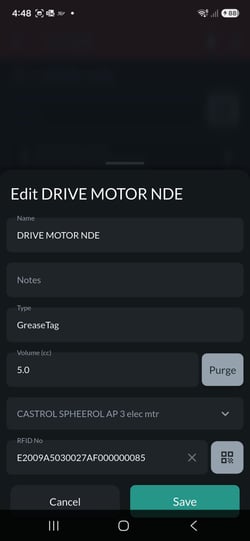
- Tap the QR code button next to the RFID No field. The phone camera opens with a scanning frame.
- Read the new tag with the Head Unit. Connect the coupler to the fitting as if greasing, without pumping. The Head Unit reads the tag as unknown and shows a QR code and the new 24-character RFID number. The QR code stays on screen for about 5 seconds after disconnecting; connect again if it disappears.
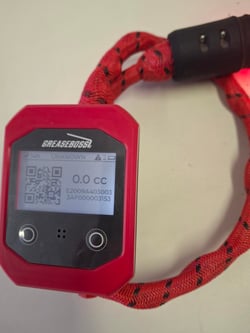
- Scan the QR code with the app. The new RFID number fills in the RFID No field.
- Tap Save.
- Tap Sync (the round button with two arrows, bottom right) to send the change to GreaseCloud. With no mobile coverage, the change is saved on the device; sync as soon as coverage is available again.