
Purpose
This guide provides a high-level overview of the required steps to deploy the Manual Greasing Monitoring Solution.
It is intended to help installers and technicians understand the overall workflow and key requirements for installation and setup.
Detailed procedures for each task are covered in separate supporting documents.
1. Configure Grease Points in the Dashboard
3. Attach the Head Unit to the Grease Gun and Sync
4. Physically Install Tags and Map Tags Using the Head Unit and GreaseBoss App
1. Configure Grease Points in the Dashboard
Before installing hardware, all grease points should be created in the dashboard. This prepares the system for tag mapping and event recording.
- Perform an audit and make a record of all of the grease points that will have a Grease Tag attached and be monitored in the GreaseCloud account.
- Record details such as;
- Parent Locations and/or Locations
- Parent Asset and/or Asset
- Grease Tag Points
- Grease Types required for the Grease Tag Point
- Volume required
- Greasing Schedules
- Record details such as;
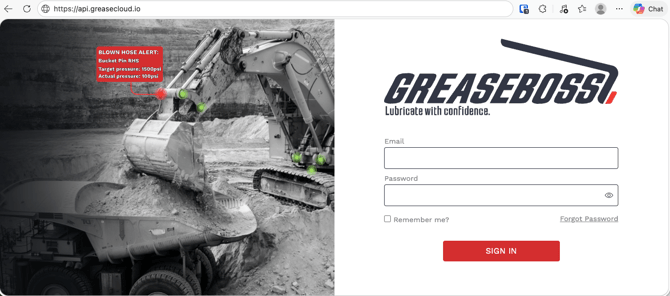
- Log into the GreaseCloud dashboard platform using your User Profile and password
- If you don’t have a User Profile, contact your System Administrator to add you. Alternatively, your System Administrator can contact GreaseBoss to add the user.
- Use the Account Data Template to capture and populate the Grease Tag details into the GreaseCloud Account
- Download the “Account Data Template” in Account Setup
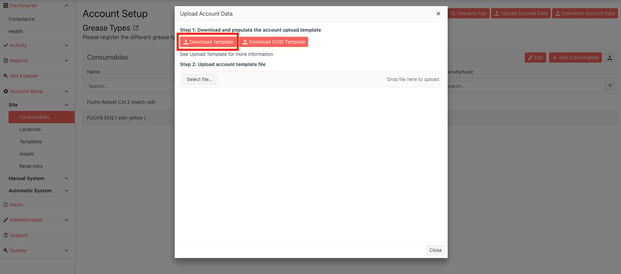
- Populate this template using the details from the grease point audit
- Upload the spreadsheet detail in the GreaseCloud Account
- Save and verify the configuration
Notes
- Consistent naming conventions should be used
- Grease point names should match physical tag locations and be understandable to operators doing the lubrication tasks
- Refer to the Dashboard Configuration Guide for detailed instructions
2. Install Gateway
The Gateway is required to be installed to enable the Head Unit to sync and download account data such as Grease Tags/Points, Schedules, Etc…and upload lubrication activity.
- Identify the Location for the Gateway to be installed
- The location is required to be within syncing range (or in the same location) of the Head Units when the Head Units are connected to their Charger.
- Confirm constant Power Supply is available to power the Gateway
- Confirm the selected data backhaul type is available at the location – ie, 4G LTE Connection, Site WiFi, LAN, etc.
-
Choose the option that suits your site's security posture — the default is the GreaseBoss-provided SIM, which is also the fastest to deploy:
-
|
Option |
Description |
Best for |
|
1. 4G LTE (SIM) |
GreaseBoss-provided SIM (default) or your own private 4G SIM; fully isolated from the site network |
Fast starts and pilots; most sites |
|
2. Guest Wi-Fi |
Uses an existing customer guest network for internet connectivity |
Sites with good guest coverage |
|
3. Site network (VPN) |
Data carried through the customer network via a secure VPN tunnel |
Tightly controlled networks; remote sites without telco access |
|
5. Private cloud / on-premise GreaseCloud |
Full GreaseCloud deployed on customer infrastructure |
Largest deployments; highest control |
-
-
-
A quick field check for the default 4G option: stand where you plan to install the Gateway and confirm you can make a good-quality mobile phone call. If the site requires a private OT Wi-Fi network instead, this is discussed at the kick-off meeting and the Gateway is pre-configured before shipping.
-
IT/OT teams may need to approve the communication method, provide network access details, confirm firewall requirements and verify cybersecurity compliance. Involve them early. See Data Communications Options, Common Questions from IT Departments and the Backhaul & Data Setup Explainer Video
-
-
- Install the Gateway as per Gateway Installation Guide
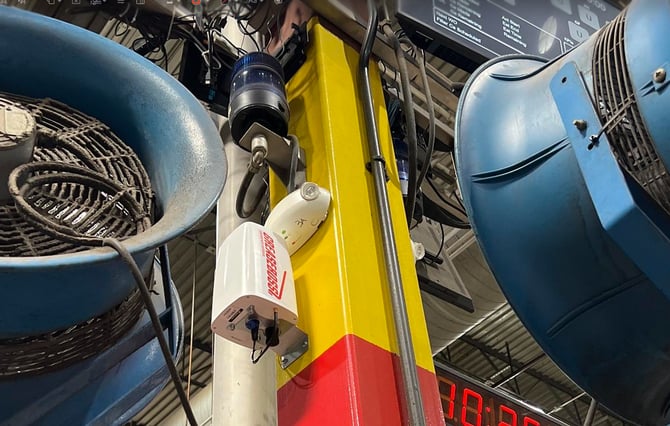
- Confirm Gateway is powered and connected
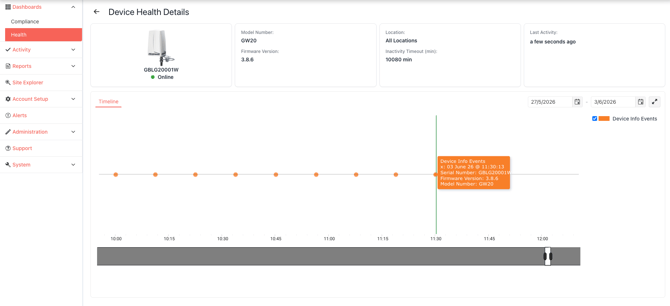
See this Article for further details: Installing the Gateway
3. Attach the Head Unit to the Grease Gun and Sync
Install the Head Unit onto the grease gun to enable grease event tracking and tag interaction.
Securely mount the head unitSee detailed Head Unit Installation Guide
Verify correct positioning
Confirm power
Install Head Unit Charger in a location near the Gateway within Syncing range.
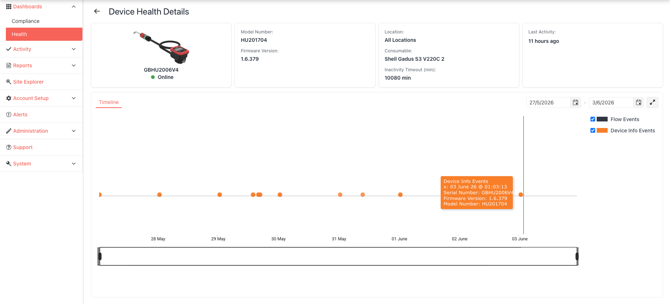
Connect Head Unit to Charger to Sync with Gateway and download account data
Keep Head Unit on the Charger when not in use to ensure it is regularly syncing and updating account data.
The Head Unit is remotely accessible by GreaseBoss Support when on the charger and within range of the Gateway for firmware upgrades and remote support.
Notes
Ensure the head unit is mounted firmly and securely to the grease gunRefer to this article for further details and considerations: Head Unit Installation Requirements and Operational Considerations
Refer to the Head Unit Installation Guide for detailed instructions
Ensure the location where the Head Unit will be put on the Charger is within range of the Gateway
Leave the Head Unit on the charger when not in use as much as possible
4. Physically Install Tags and Map Tags Using the Head Unit and GreaseBoss App
Install Grease Tags at each grease point to allow the Head Unit to recognise the point and record grease delivery and activity.
Download and install the GreaseBoss Mobile Application to a mobile deviceConfirm data and grease points within the App are accurate and correspond correctly with details in the GreaseCloud Account
.jpeg?width=120&height=260&name=shared%20image%20(34).jpeg)
Select the appropriate Grease Tag type and attach the tag securely by hand or with the supplied tag applicator
Open the GreaseBoss App and select the point that the Grease Tag has been attached to
Attach the Head Unit to the grease point
The Head Unit will display a QR Code and 24 digit RFID number
.jpeg?width=217&height=289&name=shared%20image%20(35).jpeg)
Scan the QR Code on the Head Unit with the QR Code
The 24 digit RFID Number will populate in the field
Press Save to save the data within the App
Press Sync to upload the data to the GreaseCloud Account
Multiple Tags can be scanned and saved and then synced in batches – however it is recommended to regularly Sync to ensure data is captured and stored effectively
Repeat for all grease points
Point details or extra points can be added within the App and synced to the GreaseCloud if required
Notes
GreaseBoss App can be used to map and save tags in areas without network connection to Sync.Ensure App is downloaded and log in prior to operating in areas without network
Ensure to Sync saved data from App to the GreaseCloud as soon as possible once within network connection.
If Tags are installed on points within close proximity to eachother, ensure the chips in the tags are orientated away from the other Tag’s chip and grease point
Refer to the Tag Installation Guide and GreaseBoss App User Guide for detailed instructions
5. Final Verification
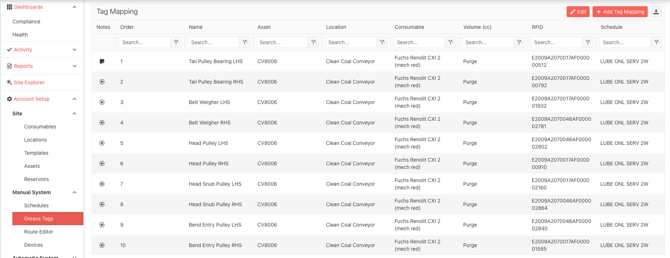
Review the Grease Tag details in the GreaseCloud Account to confirm points now have an RFID number associated to them.
Connect the Head Unit to the Charger to sync to the GreaseCloud. This will update the Head Unit with the Grease Tag/Point Data and Schedule. Once synced, use the Head Unit to scan tags and confirm that it is correctly reading and identifying them