
Each Grease Tag has its own 24-character RFID number. Mapping links that number to a grease point in the GreaseCloud account. Once a tag is mapped and the Head Unit has synced, the Head Unit recognises the point when it connects, and shows the operator the point name, the grease type required and the amount due.
This article covers mapping a tag to a point in the GreaseBoss Mobile App. Use it whenever a tag needs mapping, for example:
- fitting a tag to a point for the first time
- replacing a lost, damaged or faulty tag
- fixing a tag mapped to the wrong point
Installing the system for the first time? See 4. Install and Map Grease Tags with the GreaseBoss App, which also covers choosing and fitting tags and the full installation sequence.
In this article:
- Before Starting
- Map a Tag to a Point
- Check the Mapping
- Fix a Tag Mapped to the Wrong Point
- Tips
Before Starting
- The tag is fitted to the grease fitting. See the installation guide for the tag type in 4. Install and Map Grease Tags with the GreaseBoss App.
- The point exists in the account. If it doesn't, add it with the + button. See GreaseBoss Mobile App - Add, Edit and Delete Locations, Assets and Points.
- The point is on a schedule. Schedules can't be set in the app. A point that isn't on a schedule in the GreaseCloud Dashboard shows No task found on the Head Unit, even when its tag is mapped.
- The Head Unit is charged and has synced recently with the Gateway.
- The app is open and signed in to the right account. See GreaseBoss Mobile App - Getting Started.
Map a Tag to a Point
- Open the point. Browse Location → Asset → Point and tap the point. To find it quickly, search for its asset with the magnifying glass, open the asset, then type part of the point name in the Find… box. The Edit panel opens. Check the point name matches the grease point in front of you.
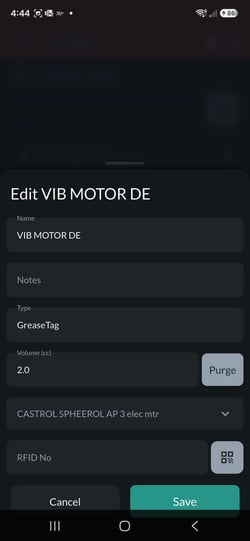
- Replacing a tag? If the point already has an RFID number, tap the X in the RFID No field to clear it. Check you have the right point first. Tip: copy the old number into Notes in case it's needed later. Greasing history already in GreaseCloud stays with the point.
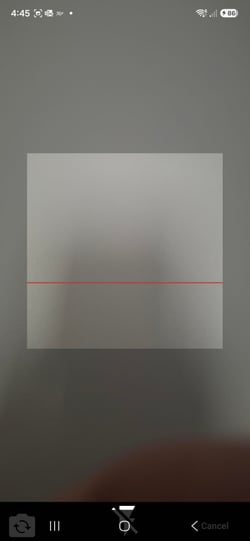
- Tap the QR code button next to the RFID No field. The phone camera opens with a scanning frame.
- Read the tag with the Head Unit. Connect the Head Unit coupler to the fitting as if greasing. Don't pump grease. Because the tag isn't mapped yet, the Head Unit screen shows UNKNOWN / TAG SCANNED, a QR code and the tag's 24-character RFID number.
- The QR code stays on screen for about 5 seconds after disconnecting. If it disappears, connect to the tag again.
- Hold the coupler by its handle and keep hands clear of the metal parts. A hand over the coupler blocks the antenna and the tag may not read.
- Scan the QR code.
-
- Line up the Head Unit screen inside the scanning frame. The app reads the code and fills in the RFID No field.
- In poor light, tap the flash button at the bottom of the scanner screen.
- If the scanner buttons are hidden behind the phone's navigation bar, turn the phone sideways.
- Always scan rather than typing the number. A single wrong character means the tag won't be recognised.
-
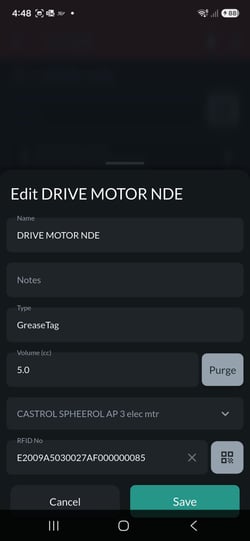
Tap Save. The RFID number is saved to the point on the device, and the point's yellow dot clears.
- Sync. Tap Sync (the round button with two arrows) to send the mapping to GreaseCloud. With no coverage, the mapping stays saved on the device: sync as soon as coverage returns.
Check the Mapping
- Check the sync worked. Tap the person icon in the bottom bar and check the Last Synced date and time on the Profile screen.
- Sync the Head Unit. Put the Head Unit on its charger near the Gateway. Connecting the charge plug starts a sync, which loads the new mapping onto the Head Unit.
- Test the point. Connect the Head Unit to the tag as if greasing. The screen should show the point's name and location.
- QR code shown instead: the point isn't mapped. Map it again, sync the app and the Head Unit, then test again.
- Wrong point name shown: the tag is mapped to the wrong point. See below.
Fix a Tag Mapped to the Wrong Point
- Clear the wrong point. Open the point the tag was mapped to by mistake, tap the X in the RFID No field to clear it, then tap Save.
- Map the right point. Open the correct point and map the tag using the steps above.
- Sync the app, then sync the Head Unit and test the point again.
Tips
- Tags close together. Where two tags are near each other, turn them so their RFID chips are as far apart as possible and never pointing at a grease nipple they don't belong to. This stops the Head Unit reading the wrong tag.
- Sync often. Many points can be mapped and synced together, but syncing regularly keeps the work safe.
- Take care with the bin icons. Each location, asset and point has a bin icon, which deletes that item from the account. See GreaseBoss Mobile App - Add, Edit and Delete Locations, Assets and Points.
- Tag won't read? See Grease Tag Troubleshooting.