
This article covers installing the GreaseBoss Mobile App, signing in to the right GreaseCloud account, finding your way around the app, working without mobile coverage and syncing.
In this article:
- Install the App
- Sign In
- The Home Screen
- How the App Is Organised
- Finding a Location, Asset or Point
- Working Without Mobile Coverage
- Syncing
- The Profile Screen
- Next Steps
Install the App
- On a phone or tablet running iOS 17.0.1 or Android 14 or later, open the App Store or Google Play.
- Search for "GreaseBoss" and install the app.
On company-managed devices, site IT may need to approve the app first. See GreaseBoss Mobile App - Information for IT Departments.
Sign In
- Open the app.
- Enter the email and password used for the GreaseCloud Dashboard, then tap SIGN IN.
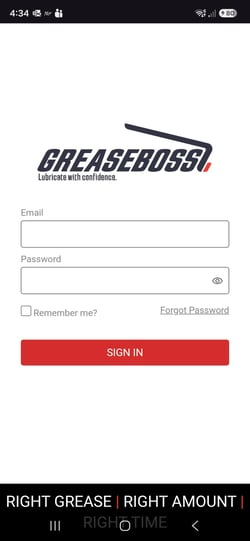
Check the account. The account name shows in the red bar at the top of the home screen. The app opens the GreaseCloud account that was used most recently. If you have access to more than one account, log in to the GreaseCloud Dashboard first and open the account you want to work on, then open the app.
The Home Screen
The home screen lists the locations in the account.
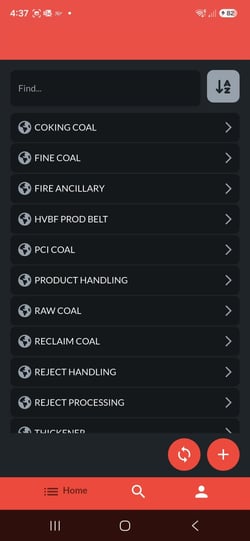
| CONTROL | WHAT IT DOES |
|---|---|
| Find… box | Searches the list on the current screen |
| A–Z button | Sorts the list in ascending or descending order |
| Sync (round button with two arrows) | Sends changes to GreaseCloud and loads the latest data from it |
| + button | Adds a location, asset or point. See GreaseBoss Mobile App - Add, Edit and Delete Locations, Assets and Points |
| Home (bottom bar) | Returns to the list of locations |
| Magnifying glass (bottom bar) | Searches the whole account for a location or asset |
| Person icon (bottom bar) | Opens the Profile screen |
How the App Is Organised
The app follows the same structure as the GreaseCloud account: Location → Asset → Point.
- Tap a location to see its assets.
- Tap an asset to see its points.
- Tap a point to open its details.
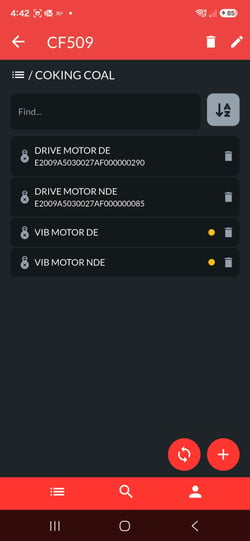
- The path at the top of each screen shows where you are. Tap the back arrow to go up a level.
A yellow dot shows where mapping still needs doing:
- List of locations: no yellow dots are shown.
- List of assets (after tapping a location): a yellow dot marks each asset that has points still to map.
- List of points (after tapping an asset): a yellow dot marks each point that isn't mapped yet. A mapped point shows its number under the point name.
Finding a Location, Asset or Point
- A location or asset anywhere in the account: tap the magnifying glass in the bottom bar and type part of its name.
- A point: the account-wide search doesn't find points. Search for the point's asset, open it, then type part of the point name in the Find… box.
- Anything on the current screen: type part of the name in the Find… box.
Working Without Mobile Coverage
Many grease points are in areas with no signal. Once you're signed in, the app keeps working without coverage, even if it's closed and reopened or the phone is in flight mode. Changes are saved on the device.
Syncing isn't possible until coverage returns. Sign in and open the app before heading out, and sync as soon as you have coverage again.
Syncing
Tap Sync (the round button with two arrows) to:
- send changes made in the app to GreaseCloud, and
- load the latest locations, assets and points from GreaseCloud.
The app also loads the latest data each time it opens with coverage. Sync often while you work: many changes can be synced together, but syncing regularly keeps the work safe.
To check that a sync worked, open the Profile screen and look at the Last Synced date and time.
The Profile Screen
Tap the person icon in the bottom bar to open the Profile screen.
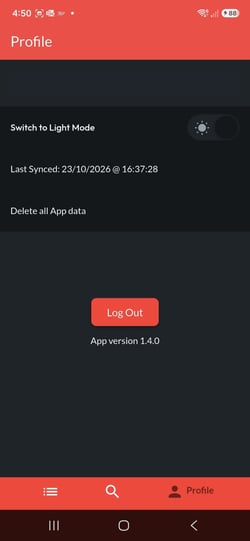
| OPTION | WHAT IT DOES |
|---|---|
| Switch to Light Mode / Dark Mode | Changes the app's colour scheme |
| Last Synced | Shows the date and time of the last successful sync |
| Delete all App data | Deletes all locations, assets and points from the device. Tap Sync to load them again from GreaseCloud |
| Log Out | Signs out of the app |
| App version | Shows the version installed |
Next Steps
- GreaseBoss Mobile App - Map Grease Tags
- GreaseBoss Mobile App - Map Endpoints
- GreaseBoss Mobile App - Add, Edit and Delete Locations, Assets and Points