
Every grease point to be monitored gets a Grease Tag. Each tag has its own 24-character RFID number. Mapping links that number to the named grease point in the GreaseCloud account. Once a tag is mapped, the Head Unit recognises the point when it connects, and shows the operator the point name, the grease and the amount due.
The Head Unit reads each tag, and the GreaseBoss App on a phone or tablet links it to its point.
This is step 4 of installing the GreaseBoss Manual Greasing System. For the full sequence, see Solution Installation Process and Requirements Overview.
In this article:
- Before Starting
- Choosing the Right Tag
- Setting Up the GreaseBoss App
- Fitting and Mapping Each Tag
- Checking the Mapping
- Tips for a Smooth Installation
- Next Step
Before Starting
Steps 1 to 3 must be complete:
- Grease points are set up in GreaseCloud. Every point to be tagged exists in the account with its location, asset, grease type, volume and schedule. Only the RFID number is blank. See 1. Configure Grease Points in the Dashboard.
- The Gateway is installed and connected. See 2. Installing the Gateway.
- The Head Unit is fitted to its grease gun, charged and synced. It must have synced with the Gateway recently so it holds the latest point data. See 3. Head Unit Installation Requirements and Operational Considerations.
Also required:
- A phone or tablet with a camera, running iOS 17.0.1 or Android 14 or later.
- A GreaseCloud Dashboard login (email and password).
- Enough Grease Tags of the right type. Where a site uses tag colours to show grease types, agree which colour goes with which grease before starting.
Choosing the Right Tag
| FITTING | TAG | INSTALLATION GUIDE |
|---|---|---|
| Standard Zerk grease nipple | Snap Fit (Zerk) Grease Tag | Snap On (Zerk) GreaseTags - Installation Guide |
| Button-head fitting | Button Head V-Tag (fixed with an adhesive backing) | Button Head V-Tags - Installation Guide |
| Threaded grease fitting, with the tag fitted underneath it | Washer-Style Grease Tag (held in place by the fitting's hex; choose the size whose centre hole matches the fitting thread) | Contact support@greaseboss.com.au |
Setting Up the GreaseBoss App
- Install the app. Search for "GreaseBoss" in the App Store or Google Play. Site IT may need to approve it. See GreaseBoss Mobile Application - Google and Apple Information.
- Sign in with the same email and password used for the GreaseCloud Dashboard, then tap SIGN IN.
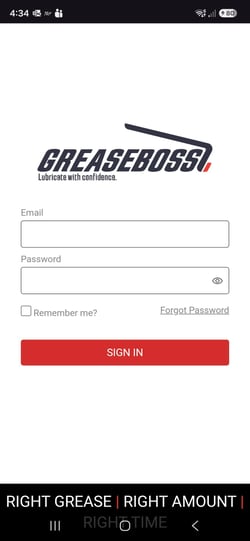
- Check the account. The account name shows in the red bar at the top of the home screen. The app opens the GreaseCloud account used most recently. Where a user has access to more than one site or account, log in to the GreaseCloud Dashboard first and open the account being installed, then open the app. Each time it opens with coverage, the app loads the latest locations, assets and points from GreaseCloud.
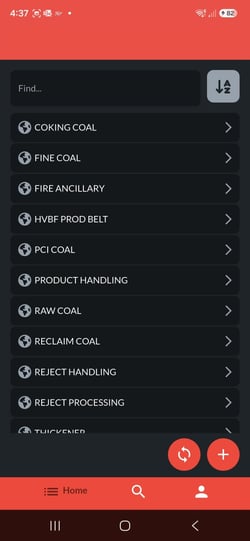
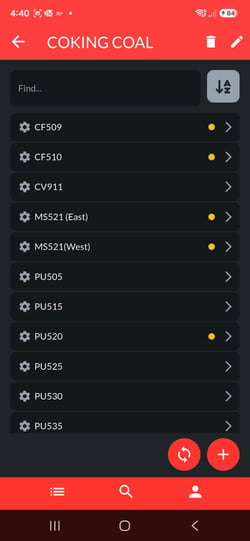
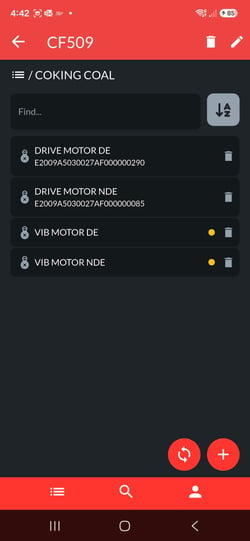
How the app is organised. The app follows the same structure as the GreaseCloud account: Location → Asset → Point. The home screen lists the locations. Tapping a location shows its assets, and tapping an asset shows its points. The Find… box searches the current screen, and the magnifying glass at the bottom searches the whole account.
A yellow dot shows where tags still need mapping. On the location screen it marks assets with points still to map. On the asset screen it marks each point without an RFID number. Points that are already mapped show their RFID number under the point name.
Working without mobile coverage. Many grease points are in areas with no signal. Once logged in, the app keeps working with no coverage, even if it is closed and reopened or the phone is in flight mode. Mapping work is saved on the device. Syncing isn't possible until coverage returns, so log in and open the app before heading out, and sync as soon as coverage is available again.
Fitting and Mapping Each Tag
Work through the site one point at a time. At each grease point:
- Fit the tag. Wipe the fitting clean and fit the tag as shown in its installation guide (see Choosing the Right Tag above). For a Snap Fit tag, line up the star-shaped cut-out with the head of the nipple and clip it on by hand or with the Tag Applicator. The flush side faces out, with the RFID chip facing away from where the Head Unit nozzle connects. Gently try to lift the tag: it should not come off.
- Open the point in the app. Browse Location → Asset → Point and tap the point being tagged. The Edit panel opens. Check the point name matches the grease point.
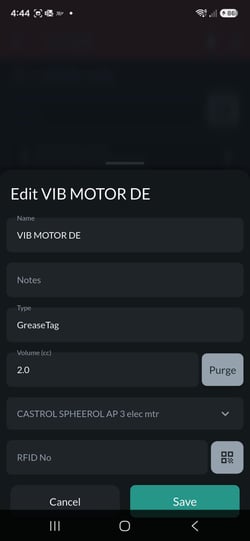
- Tap the QR code button next to the RFID No field. The phone camera opens with a scanning frame.
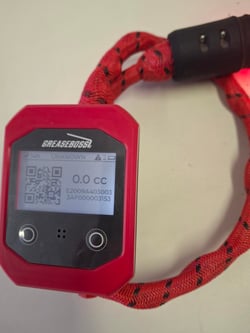
- Read the tag with the Head Unit. Connect the Head Unit coupler to the fitting as if greasing. Do not pump grease. Because the tag isn't mapped yet, the Head Unit screen shows UNKNOWN / TAG SCANNED, a QR code and the tag's 24-character RFID number.
- The QR code stays on screen for about 5 seconds after disconnecting. If it disappears, connect to the tag again.
- Hold the coupler by its handle and keep hands clear of the metal parts. A hand over the coupler blocks the antenna and the tag may not read.
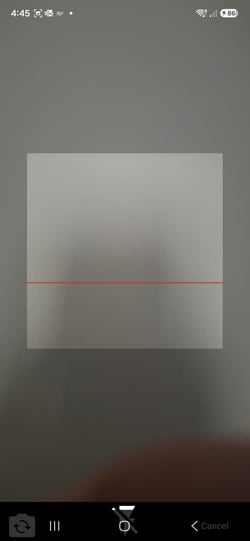
- Scan the QR code. Line up the Head Unit screen inside the scanning frame. The app reads the code and fills in the RFID No field.
- In poor light, tap the flash button at the bottom of the scanner screen.
- If the scanner buttons are hidden behind the phone's navigation bar, turn the phone sideways.
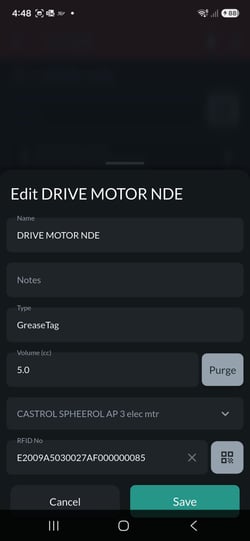
- Always scan rather than typing the number. A single wrong character means the tag won't be recognised.
- Tap Save. The RFID number is saved to the point on the device and the yellow dot clears.
- Sync regularly. Tap Sync (the round button with two arrows, bottom right) to send the mapping to GreaseCloud whenever there is coverage. Many points can be mapped and synced together, but syncing often keeps the work safe.
Repeat for every grease point.
Tags close together. Where two tags are near each other, turn them so their RFID chips are as far apart as possible and never pointing at a grease nipple they don't belong to. This stops the Head Unit reading the wrong tag.
Wrong tag mapped to a point. Open the point, tap the X in the RFID No field to clear it, then scan the correct tag and save.
Checking the Mapping
When every point is mapped:
- Sync the app one last time while in coverage. To confirm the sync worked, tap the person icon (bottom right) to open Profile and check the Last Synced date and time.
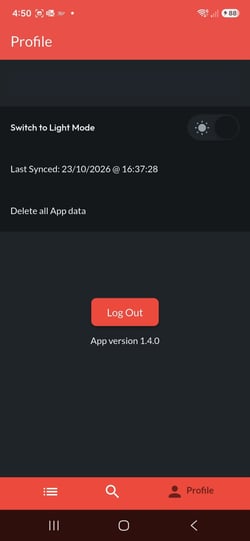
- Check GreaseCloud. In the GreaseCloud Dashboard, go to Account Setup → Manual System → Grease Tags and confirm every point now has an RFID number.
- Sync the Head Unit. Put the Head Unit on its charger near the Gateway. Connecting the charge plug starts a sync, which loads the new mapping onto the Head Unit.
- Test some points. Take the Head Unit to a few mapped points and connect it as if greasing. The screen should show the point's name and location.
- QR code shown instead: the point isn't mapped. Map it again, sync the app and the Head Unit, then test again.
- Wrong point name shown: the tag has been mapped to the wrong point. Clear the RFID number from the wrong point, map the tag to the right one, and sync again.
Tips for a Smooth Installation
- A crew can typically fit and map 200 to 500 tags a day, depending on access to the grease points.
- Map every point before operators start greasing with the system. It avoids confusion and gaps in the data.
- Each point, asset and location in the app has a bin icon, which deletes that item from the account. Take care not to tap it by mistake.
- To replace a lost or damaged tag after installation, see Replace a lost tag.
- If a tag won't read, see Grease Tag Troubleshooting.
Next Step
With every tag mapped and checked, carry out a test run: Step 4 - Test Run.
Related Articles
- Solution Installation Process and Requirements Overview
- Snap On (Zerk) GreaseTags - Installation Guide
- Button Head V-Tags - Installation Guide
- GreaseBoss Application - Walkthrough and mapping Tags
- Replace a lost tag
- Grease Tag Troubleshooting